Templates and Icons
A device template holds the fields of a new device: its icon, colors, layer and the whole node spec. A custom icon is an image of your own on a device, a group or an icon drawing.
Where templates live
| Place | What it is |
|---|---|
| This diagram | Templates saved in the diagram, which go everywhere the diagram goes. |
| Library | One library on the phēnix server, shared by all its users. |
| Built-in | Five read-only templates: Server, Workstation, Router, Firewall and External device. |
| Server | Template files that an administrator put on the server, as read-only collections. |
Add a device from a template
Under Templates in Nodes & Objects, the sections are This diagram, Library or Other library templates, each collection, and Built-in. Click a template, or drag it onto the canvas.
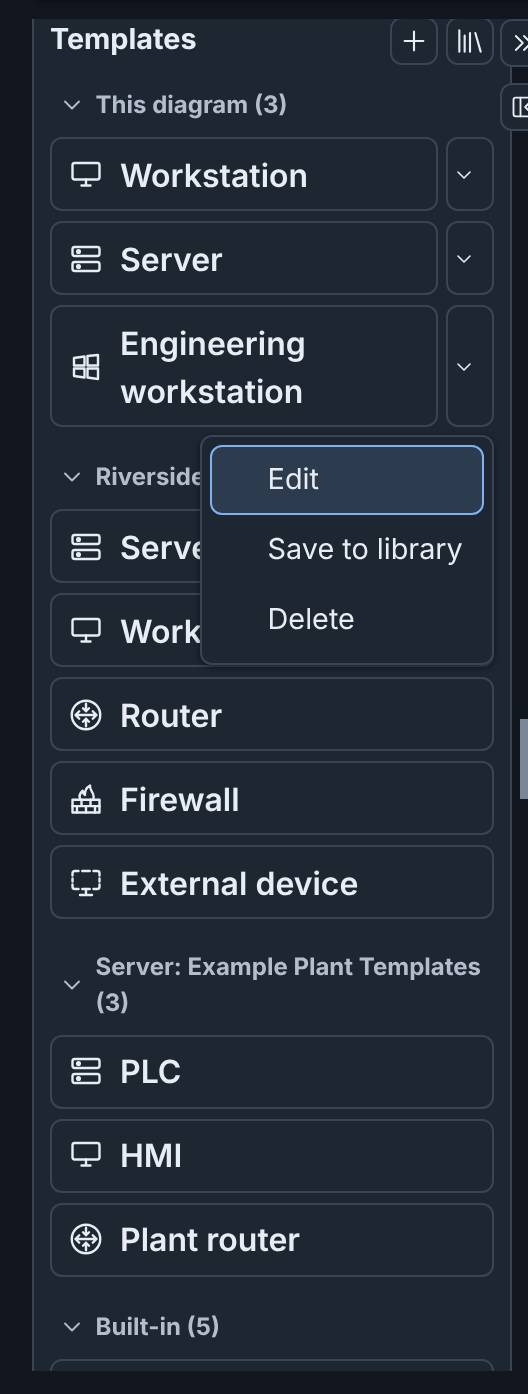
The new device has the hostname of the template, with a number when the
diagram already has that name, for example plc-2. It has a connection
point for each interface of the template, and no connections. It has the
icon, icon size and layer of the template. A change to the template
changes no device.
When you add a device from a library template or a server template, Builder also adds a linked copy to This diagram (see Linked templates).
Make a diagram template
To save ws-01 of Riverside Water as a template of the diagram:
- Select
ws-01on the canvas. - Click New device template, the + beside Templates.
- Change Template Name from
ws-01toEngineering workstation. - Enter Template Description
CORP workstation with CAD tools. - Click Save to diagram.
The template shows under This diagram. Undo reverses the save. A template made from a device keeps all of the device except its connections. With no device or with several nodes selected, the template starts from a plain device.
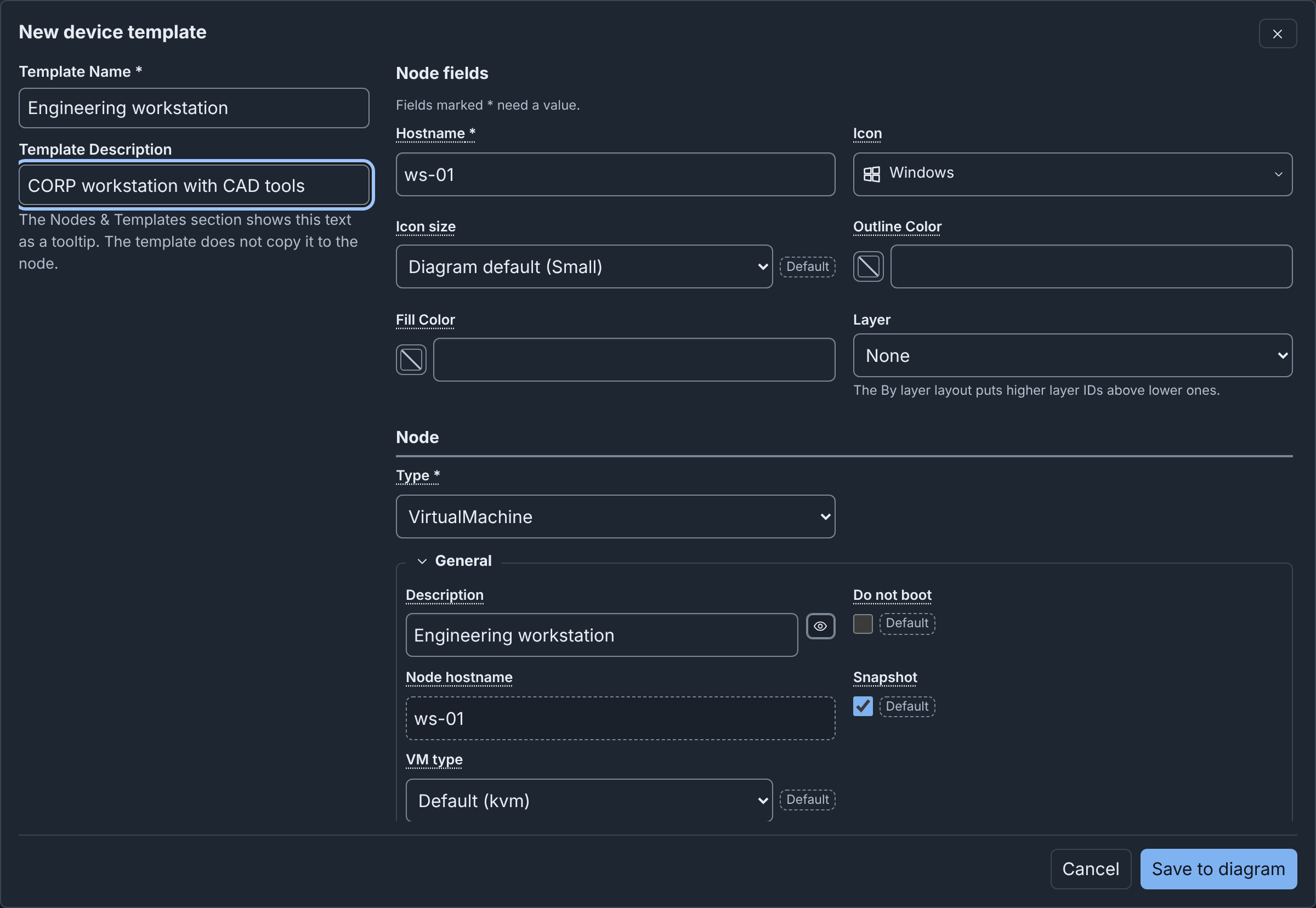
In the template editor, Hostname is the name that new devices start from (see The template editor).
Each template of This diagram has a menu with Edit, Save to library and Delete. A linked template also has Unlink, and Update when its source has a newer version. Save to library adds a copy to the library and links the template to it. Delete asks no question, and Undo brings the template back.
Linked templates
A linked template is a diagram template that is a copy of a library template or a server template. A mark under the template says when it needs your attention, for example Update available or Deleted from library.
To update a linked template:
- Click Update on its mark, in its menu, or in the Inspector.
- Read the question. It says if the update replaces your changes to the template.
- Click Update template.
Devices made from the template do not change. Update all in the Inspector updates every linked template with a newer version. Unlink ends the link and keeps the template as it is (see Linked templates).
The template library
To see the library, click the Node Templates tab on the drafts page. In the editor, click Node Templates library beside Templates.
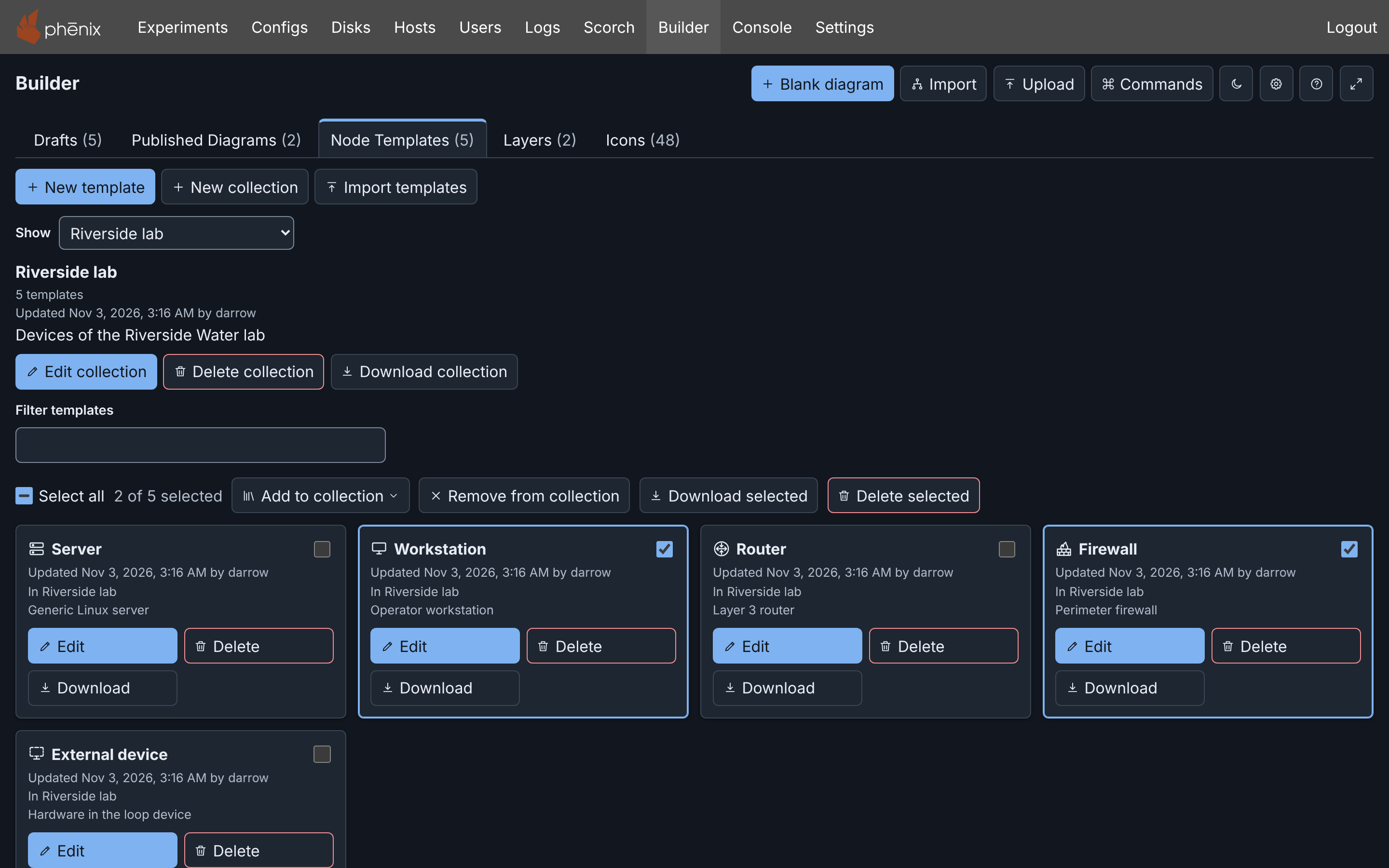
The tab has New template, New collection and Import templates. Show selects the list: All library templates, Templates with missing images, a collection, Built-in templates, or a server collection. Each library card has Edit, Delete and Download. A read-only card has View, Duplicate and Download.
Save in the template editor sends the template to the server, and Undo cannot reverse this. Delete asks first. It deletes the template for all users, and diagrams keep their copies, which then show Deleted from library.
Collections
A collection is a named group of library templates, and a template can be in several. To make a collection:
- Click New collection.
- Enter a Name.
- Click Create collection.
To fill it, select templates under All library templates. Then select the collection in Add to collection. While a collection shows, Edit collection changes its name and description. Delete collection deletes it and keeps its templates (see Collections).
Missing disk images
A card with a drive image that the server does not have shows a warning. Templates with missing images in Show lists only those templates. The check needs a role that can list disk images (see Missing disk images).
Template files
A template file holds one collection of templates, as YAML or JSON. A download also carries a copy of each custom icon that its templates name and the server has. Download on a card, Download selected and Download collection each save a template file.
To import a template file:
- Click Import templates on the Node Templates tab.
- Select the file. Builder describes it, for example "Plant floor: 2 templates and 1 custom icon."
- Click Import.
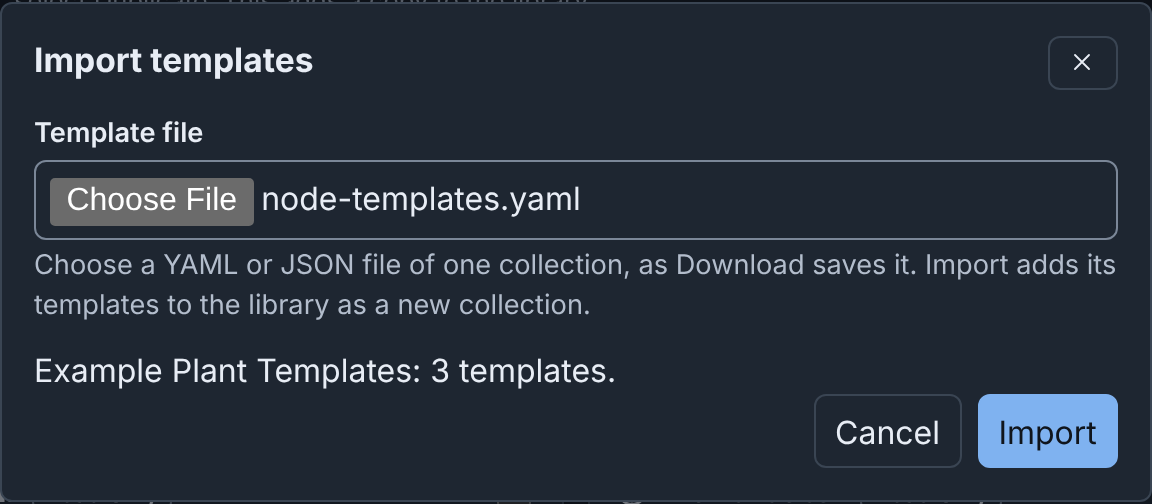
Import adds the templates to a new collection, named by the name in the
file. For the format, see File formats and
the example node-templates.yaml.
Server collections
Each template file in the template directory of the server becomes one read-only collection, shown as Server: and its name. See Template files on the server. Duplicate collection copies it into the library, where you can change the copy.
Custom icons
All users of the server share one icon library. To use a custom icon:
- Select the device, the group or the icon drawing.
- In the Inspector, click Icon.
- At the end of the list, select Custom icon….
- In the Custom icons dialog, click Use on a listed icon. Or click Upload icon… and select an image file.
- For an upload, enter the icon name. Then click Add icon.
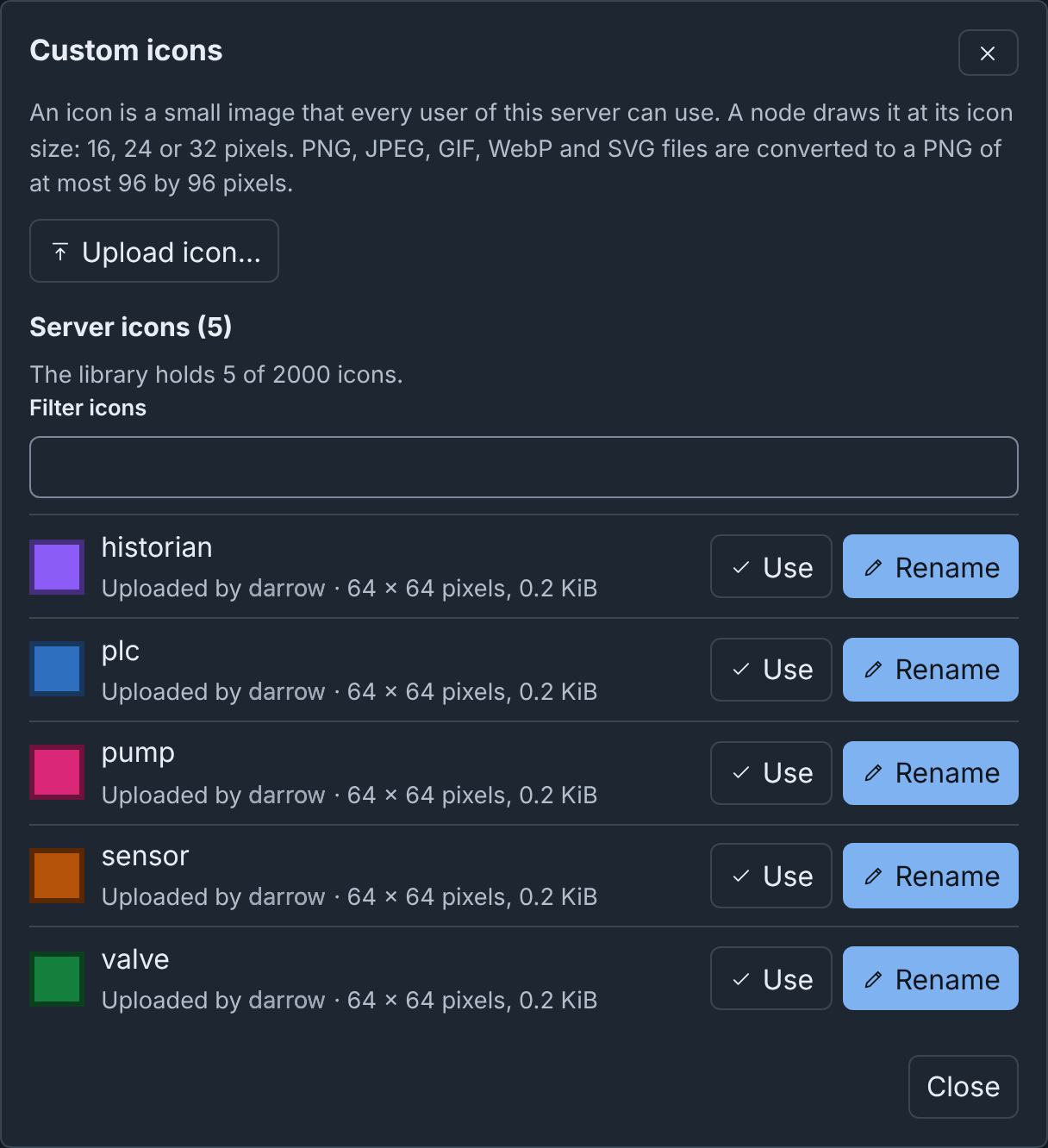
Upload icon… takes a PNG, JPEG, GIF, WebP or SVG file of at most 5 MiB. The icon name is unique on the server. The change takes effect at once. A custom icon keeps its own colors in the light and the dark theme, so use an image that is clear on both.
The Icons tab
The Icons tab of the drafts page lists the built-in icons and the server icons. View shows an icon at its stored size and at three small sizes. Download saves it as PNG. Delete deletes an icon that a user uploaded, after a question.
Rename in the Custom icons dialog gives a new name to an icon that a user uploaded, and the old name still works. Deleting an icon changes no diagram: its nodes show their built-in icon until someone uploads an icon of that name (see Renaming and deleting icons).
Icons in a diagram file
A draft names its icons. Except for a copy that it kept from an uploaded file, it holds no image of them. A Builder JSON or YAML download carries a copy of each icon that the diagram names. An upload adds the icons that the server does not have (see The diagram and its icons).
Advanced
- The library, a diagram and a template file each have limits. See Limits.
- Each template card has a checkbox, and a row above the cards acts on the selection. See Selecting several templates.
- The Custom icons dialog lists the copies that the diagram holds under In this diagram, and Add selected to server adds several at once. See Several icons at once.
- When Builder cannot read the library, Templates says so, with Retry. See When the library cannot be loaded.
- Scripts manage the library through the REST API. See From a script.
More detail
- Templates: details: every rule and message of templates and collections.
- Custom icons: every rule of the icon library.
- Built-in templates and Built-in icons.