Drafts
A draft is a diagram saved on the phēnix server, with its history. Builder saves each change that you make, and only Publish writes a config.
The drafts page
The drafts page opens when you click Builder in the navigation bar.
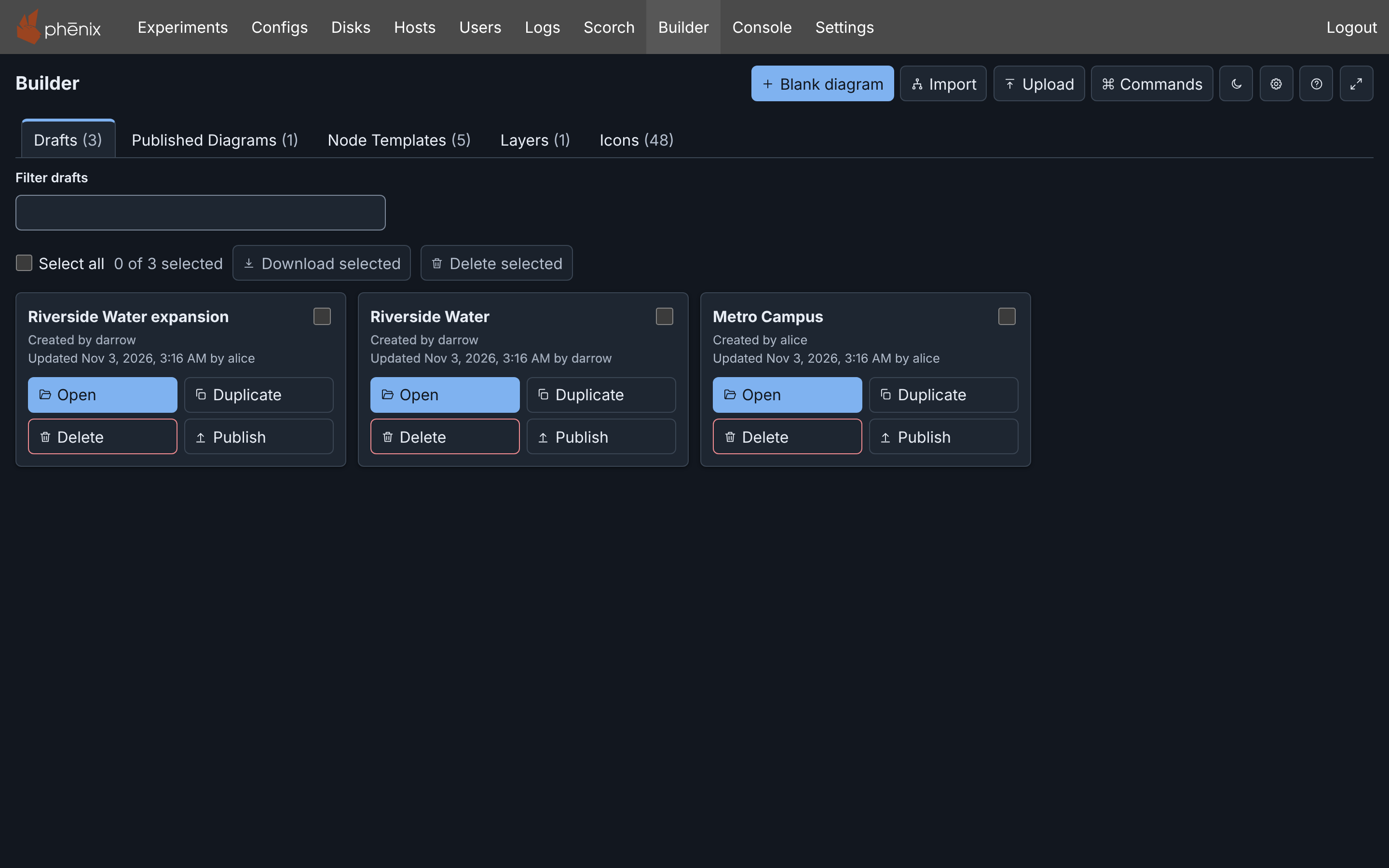
At the top right, Blank diagram, Import and Upload start a new draft. Commands opens the command palette. The shortcut is Ctrl+K (⌘+K on macOS). For the other buttons, see Top right buttons.
The five tabs are Drafts, Published Diagrams, Node Templates, Layers and Icons. Templates and Icons describes templates and icons.
The Drafts tab lists the drafts of all users, most recently changed first. Each Builder user can open, change and delete each draft. A card shows the name, the creator and the last change, with Open, Duplicate, Delete and Publish. Publish opens the Publish diagram dialog without the editor (see Publishing from the drafts page and Item buttons).
To find a draft, enter part of its name or a user name in Filter drafts (see Filtering the lists).
Create a draft

- Blank diagram opens a new draft named "Untitled topology".
- Import makes a draft from a Topology or Experiment config, stored in phēnix or in a file.
- Upload makes a draft from a Builder JSON or YAML file, pasted text, a published diagram, or a legacy Builder diagram. See Import, Upload and Download and Legacy Builder.
- Edit as a draft makes a draft from a published diagram (see
The Published Diagrams tab). The tag
builderon the Configs page does the same.
Open a draft
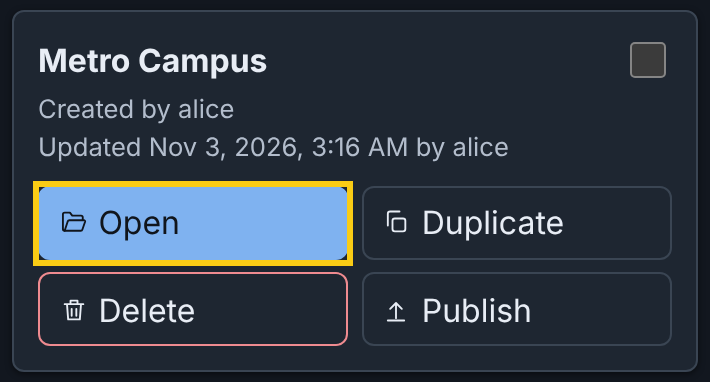
Click Open on the draft card. Or use the command palette:
- Press Ctrl+K.
- Enter
open draftand press Enter. - Enter part of the name and press Enter.
To go back to the list, click Drafts in the editor header. While a draft is open, the address bar shows its link, which works for each Builder user (see Links to a draft).
How drafts save
Builder saves each change to the server as you make it. There is no Save button. The save state in the toolbar shows where your changes are, for example All changes saved (see Save states). Save now sends the changes at once. The shortcut is Ctrl+S (⌘+S on macOS).
When Builder cannot reach the server, it keeps your changes in this browser, and you can continue to edit. The save state then shows Retry saving. Builder sends the changes within a few seconds after the server answers again, or when you click Retry saving. See Working offline.

Draft History
Each saved change is a snapshot. Draft History in the toolbar lists the snapshots, newest first. Current marks the current snapshot.
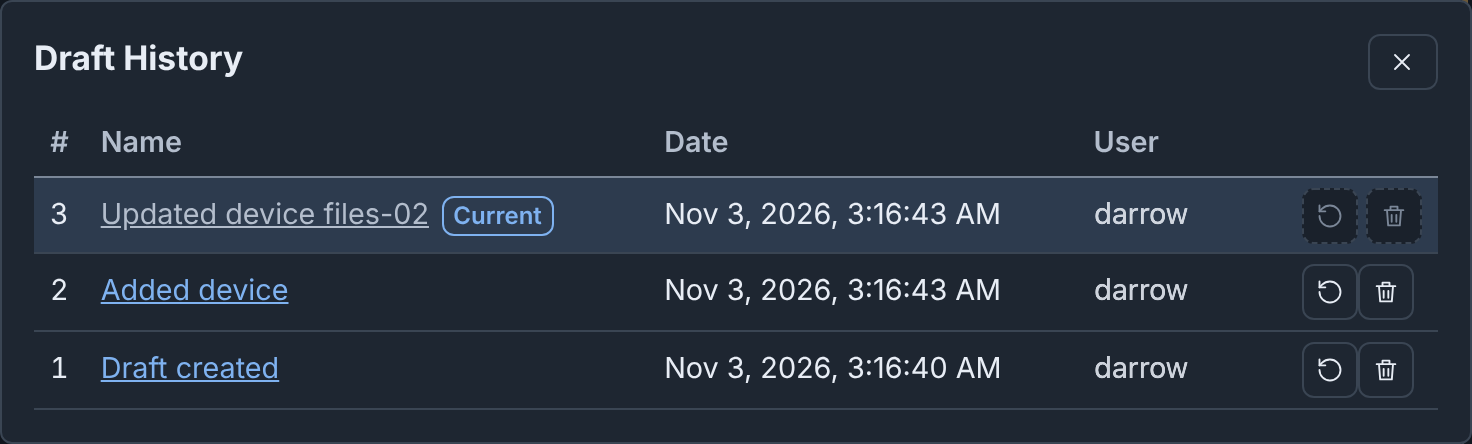
To go back to an earlier snapshot, click Restore in its row. Restoring does not delete the newer snapshots.
Warning
A change after a restore or an undo deletes all newer snapshots. This includes the snapshots of other users.
While the draft shows an older snapshot, a notice above the toolbar says how many newer snapshots your next change deletes. Return to latest shows the newest snapshot again. Save newer history as a new draft makes a new draft of the newest snapshot, and you stay on this draft (see Newer snapshots).
To delete a snapshot, click Delete in its row. Then click Delete snapshot. You cannot undo this. You cannot delete the current snapshot.
Sometimes the Inspector has changes that you did not apply. If you then leave, publish or download the draft, Builder applies and saves these changes. The snapshot has the mark Automatic.
Undo and Redo also move the current snapshot, one change at a time. They skip a deleted snapshot (see Undo and redo).
Duplicate a draft
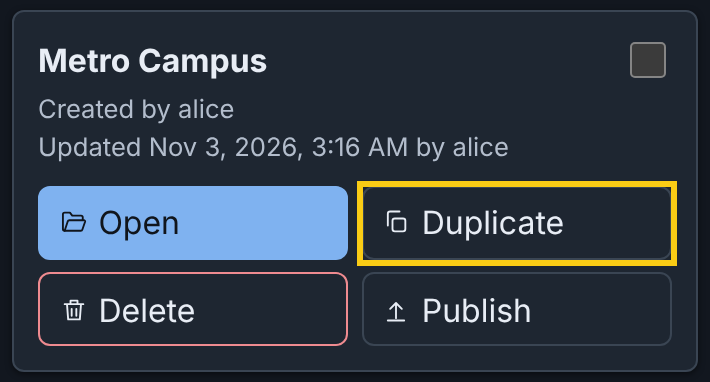
Duplicate on a card makes a new draft with a copy of the current diagram, and opens it. The copy has "(copy)" after its name, no history, and no link to a topology or experiment. When you publish it, Builder asks for a new topology name and makes a new topology (see Duplicating a draft).
Delete a draft
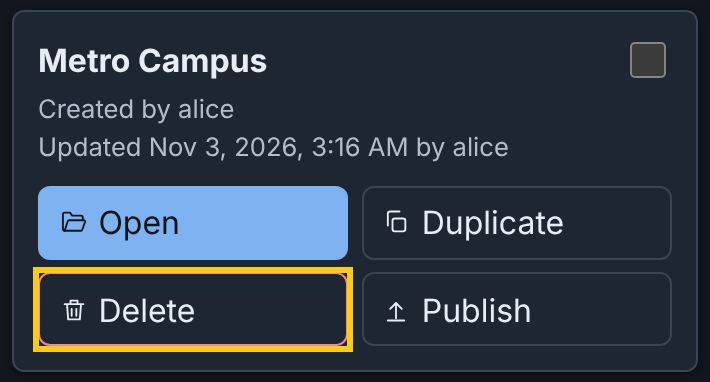
- Click Delete on the draft card.
- Click Delete draft.
Builder deletes the draft and its history from the server. You cannot undo this. The configs that the draft published do not change.
Select several drafts
Each draft card has a checkbox. The row above the cards shows the number of selected cards, Select all, Download selected and Delete selected.
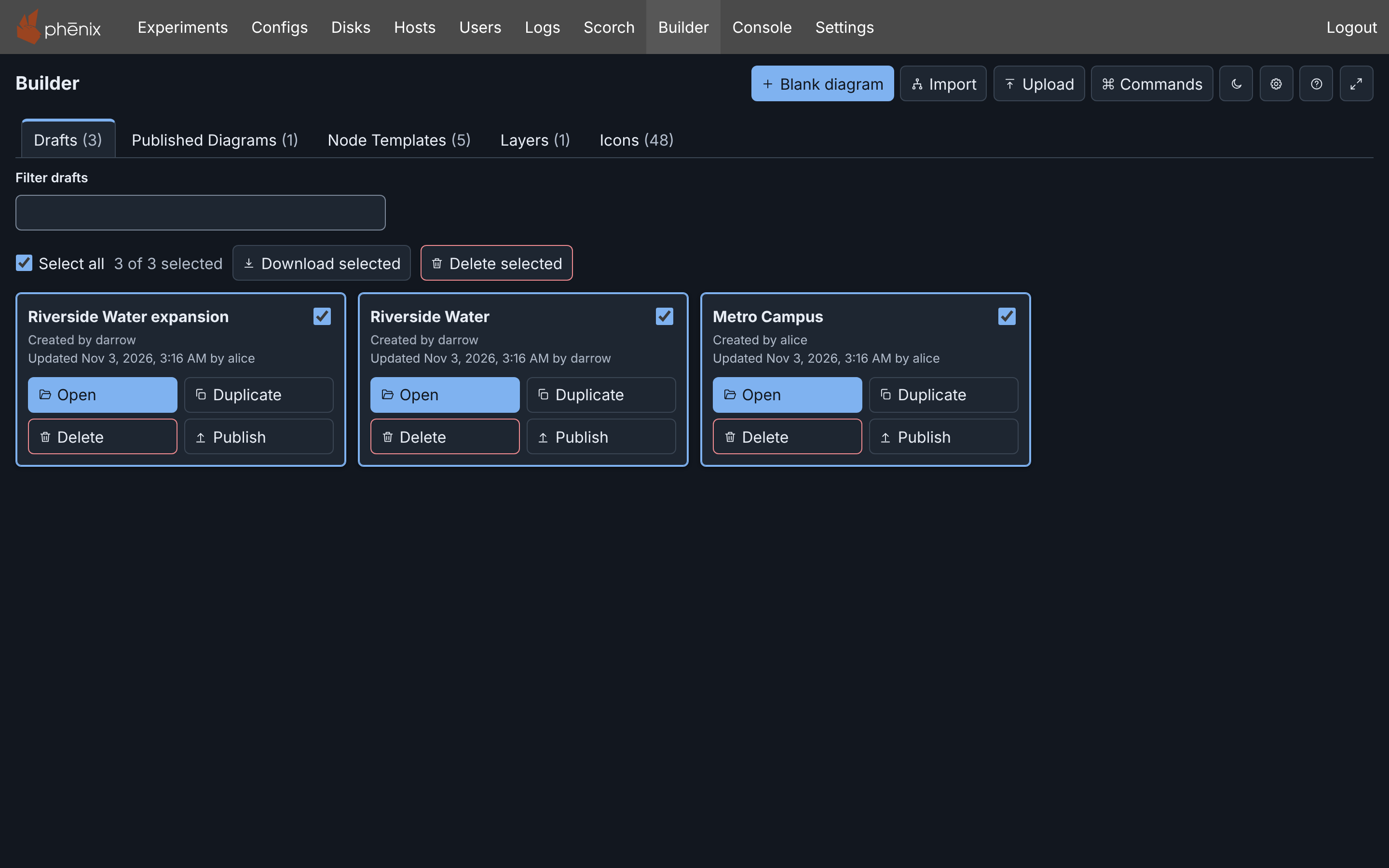
- Download selected saves a Builder JSON file for each selected draft.
- Delete selected asks once for all the drafts. A summary under the row lists the drafts that Builder could not delete.
You can also select cards with the keyboard (see Selecting with the keyboard).
The Published Diagrams tab
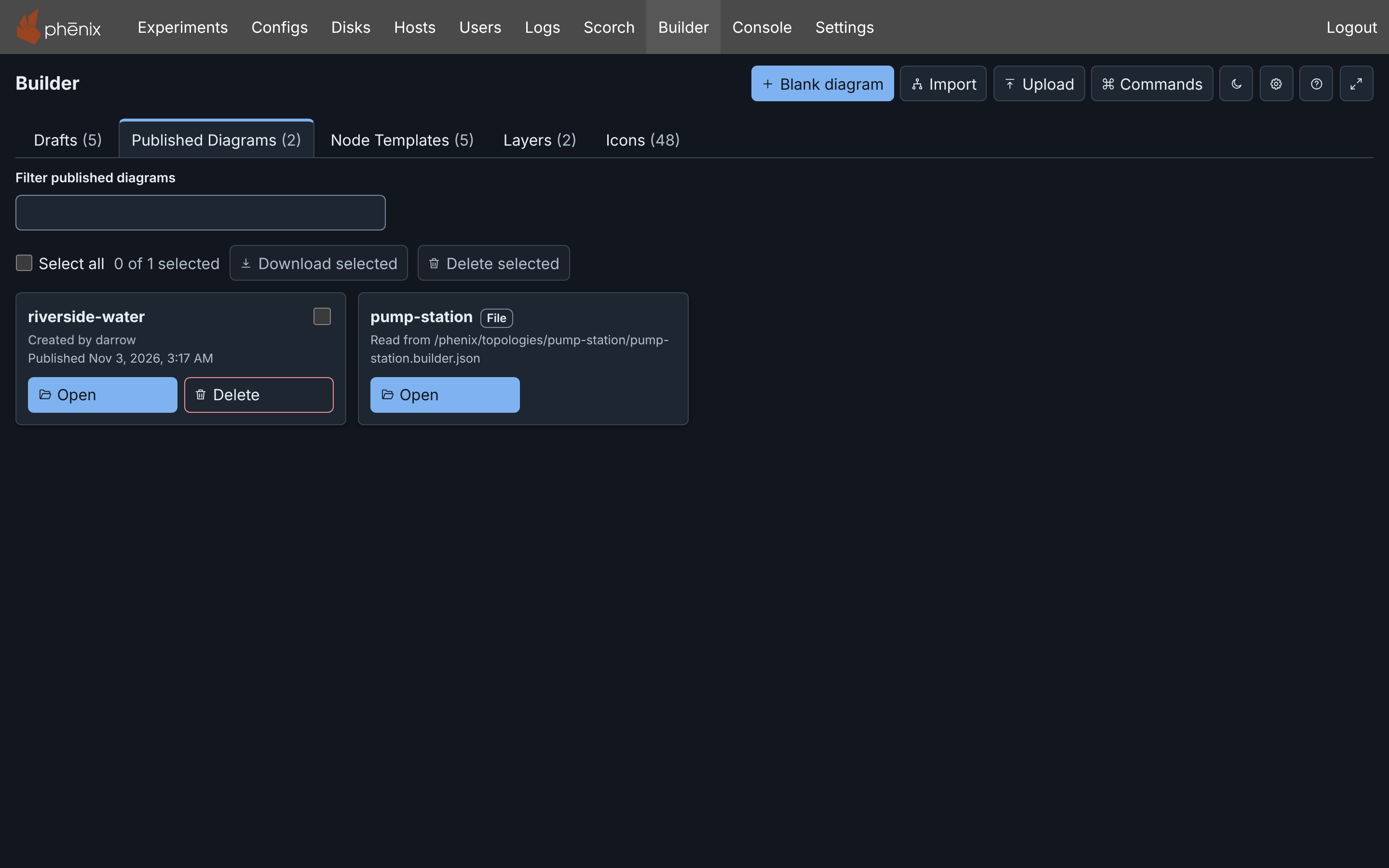
The Published Diagrams tab lists each topology that has a Builder diagram. Open on a card shows the diagram read only.
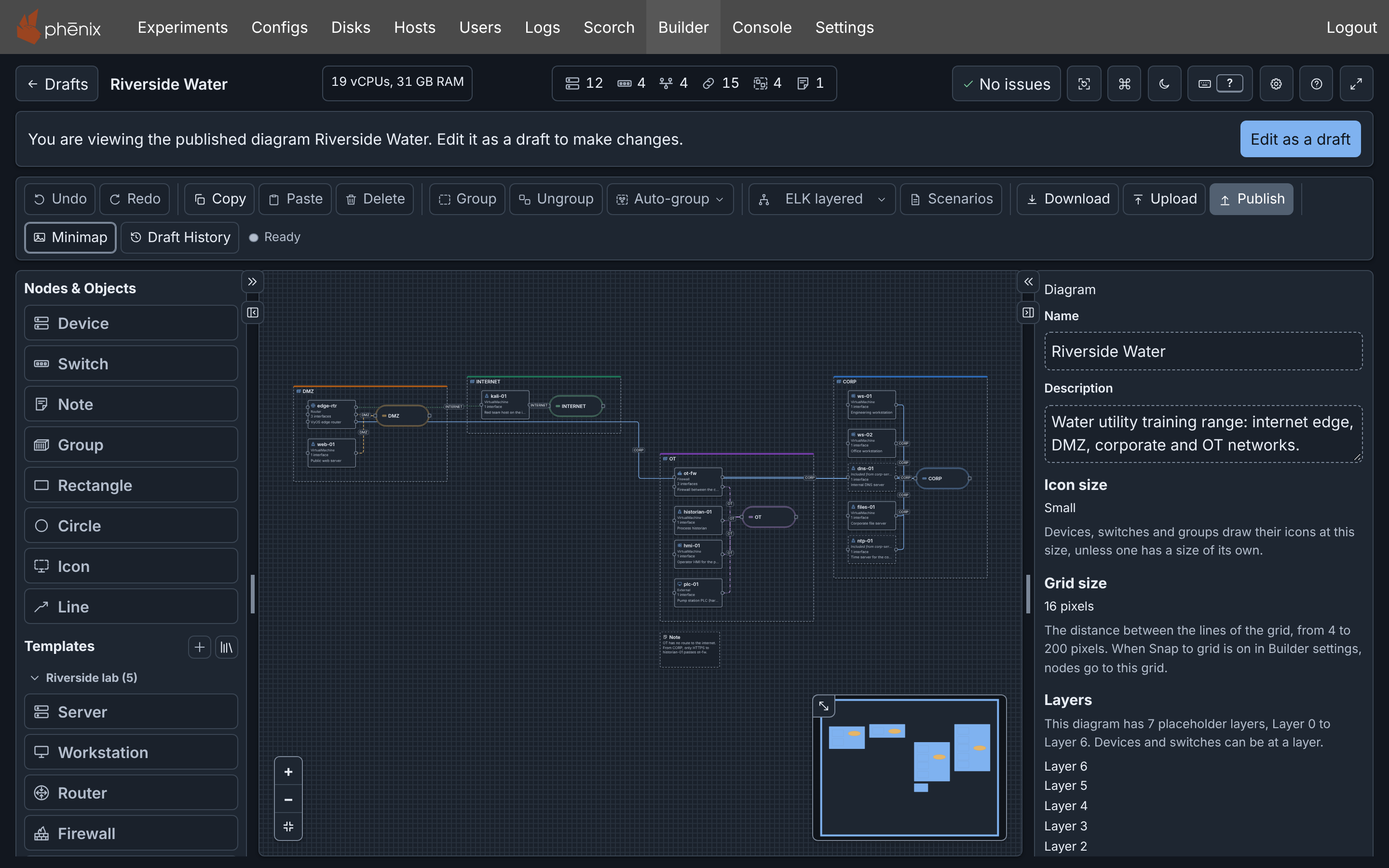
To change the diagram, click Edit as a draft. Builder makes a draft from the published diagram and opens it. If a draft already published this diagram, or was made from it, Edit as a draft opens that draft instead. The draft can publish to the topology again (see Publishing).
When Builder published a diagram with an experiment, its card and the editor toolbar have Exp, which opens the experiment page (see Opening the experiment).
A card with the tag File is a topology whose diagram comes from a Builder file on the server. It has no Delete (see Diagrams read from a file). On the other cards, Delete deletes the Topology config from phēnix. The drafts and experiments made from it do not change (see Deleting a published topology).
The Layers tab
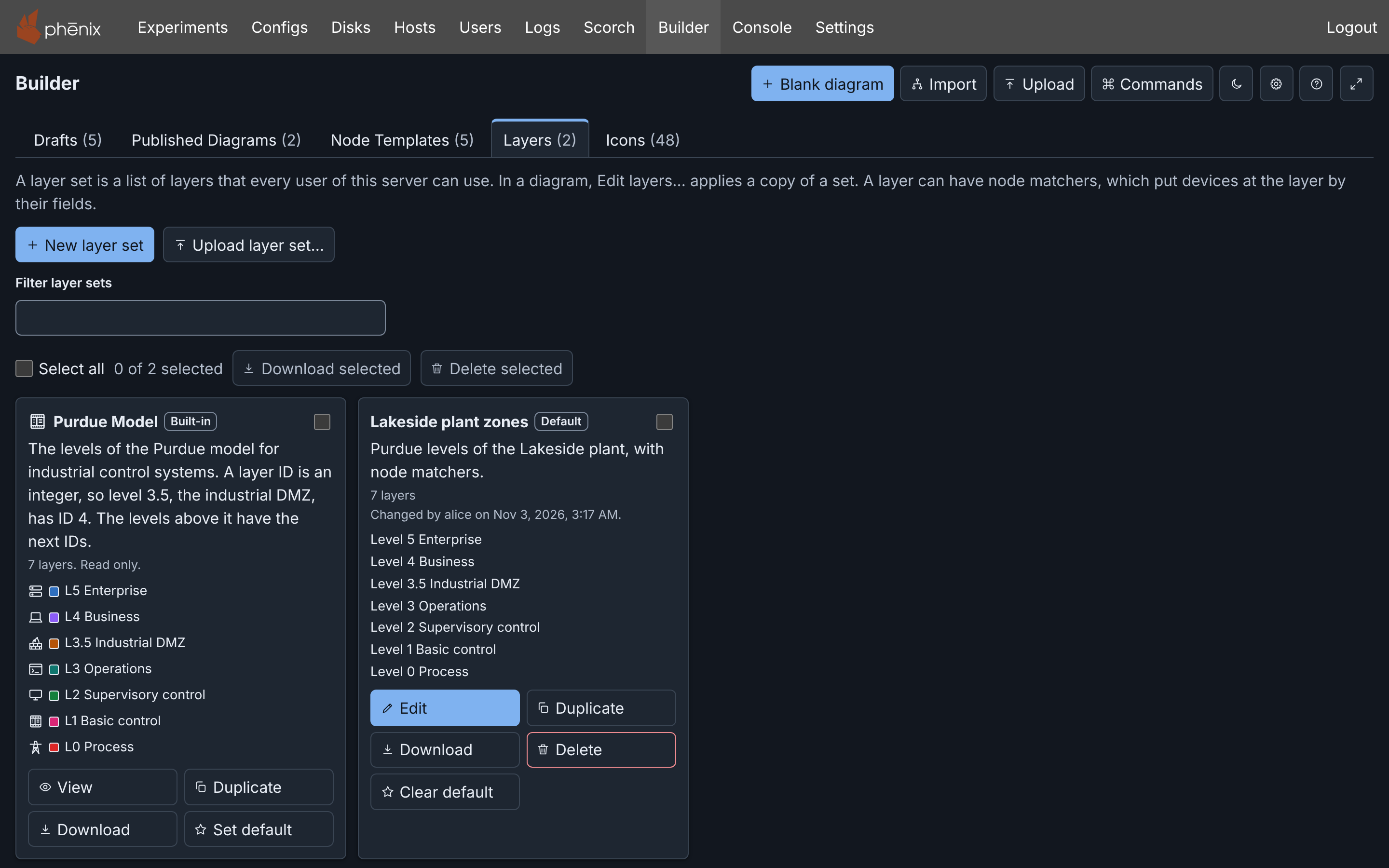
A layer set is a named list of layers and its options (see Diagrams). The Layers tab lists the layer set library, which all users share. The built-in set Purdue Model has the seven levels of the Purdue model, from L0 Process to L5 Enterprise. To change it, click Duplicate. Then change the copy.
Set default makes a set the default set of the server. Each Blank diagram starts with a copy of the default set (see The Layers tab and Selecting several layer sets).
Advanced
Damaged drafts
A draft that this phēnix server cannot read stays on the list, with Delete but no Open. See Damaged drafts.
Logging out
Logging out deletes the unsent changes from the browser. Before you log out, wait until the save state says All changes saved. See Logging out.
The same draft in two tabs
Do not open one draft in more than one tab. When you do, each tab shows a notice. When both tabs hold unsaved changes, Builder can save the changes of only one tab. See Same draft in multiple tabs.
Draft merging
Another user can save a newer version of the draft before your changes reach the server. Builder then merges their changes with yours, field by field. When a change clashes, Builder shows This draft changed on the server, and you select the changes to keep. See Draft merging.
The draft limit
At its draft limit, the server refuses new drafts. To make space, delete drafts, or click Clean up… in Settings. See Limits.
More detail
- Drafts: details: every rule and message.
- Save states: every save state message.
- Draft limits: the draft and snapshot limits.